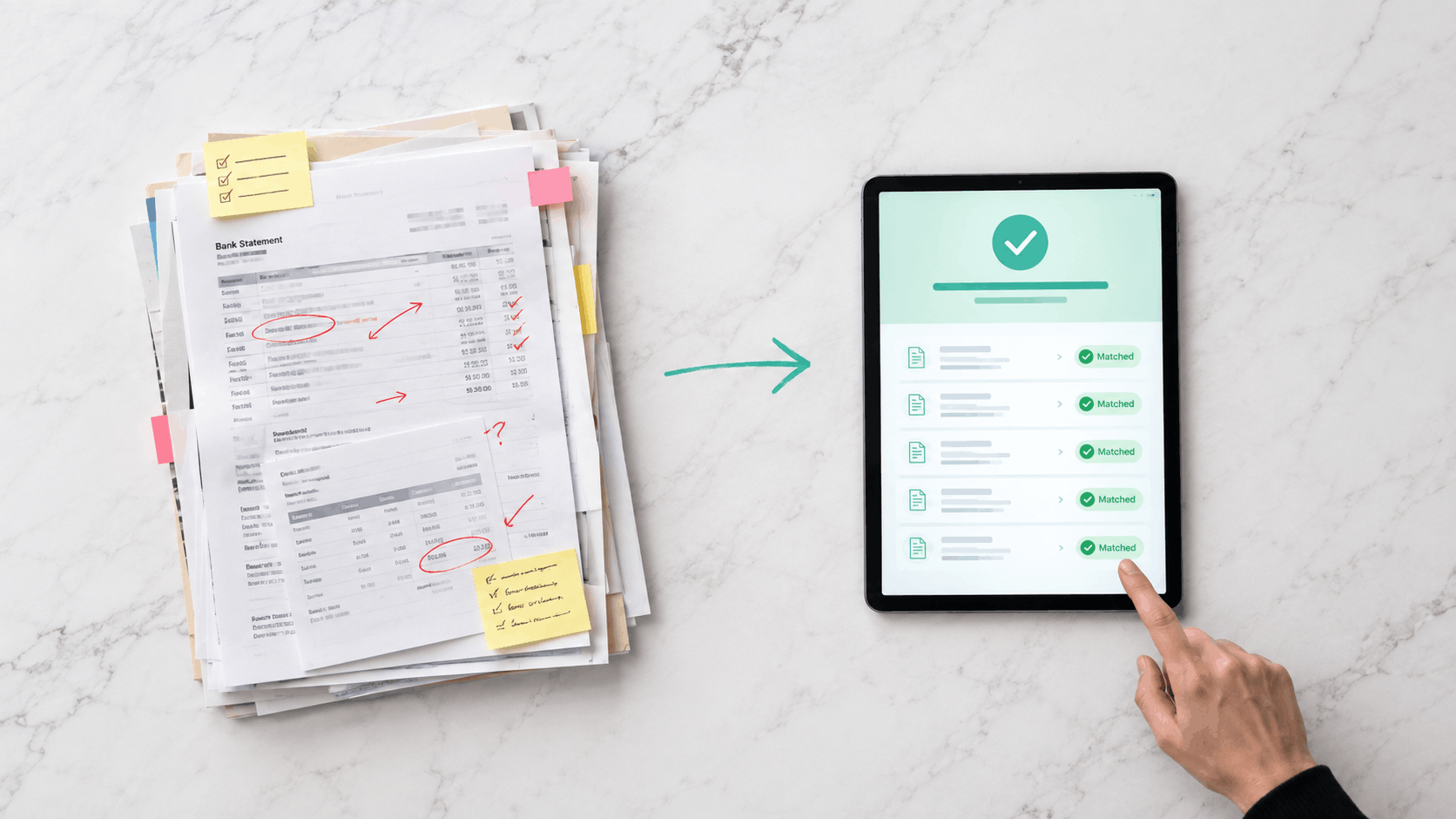
How to Automate Invoice Reconciliation With Your Accounting Software
Invoice reconciliation sits in a category of business tasks that most agency owners know is taking too long, suspect could be automated, but haven't prioritised fixing because it gets done eventually and the pain isn't acute enough on any single day to force a change.
The problem with this logic is that eventually adds up. Two hours a month of manual reconciliation is 24 hours a year. At a $100 blended rate, that is $2,400 in labour cost annually for a task that a properly integrated billing system eliminates entirely. And the hidden cost beyond time is accuracy. Manual reconciliation introduces errors. Payment references that don't match. Invoices marked paid that haven't been. Overpayments that sit unnoticed. Discrepancies that surface weeks later when someone is trying to understand why the books don't balance.
Automating invoice reconciliation doesn't require a complex technical implementation or expensive enterprise software. It requires the right integration between your invoicing platform and your accounting software, configured correctly from the start.
What Invoice Reconciliation Actually Involves
Before automating a process, understanding what it involves at each step is worth the time. Invoice reconciliation is the process of matching payment records in your bank account or payment processor against outstanding invoices in your accounting software, confirming that what was received corresponds to what was owed, and updating records accordingly.
In a manual workflow for a 30-client agency, reconciliation involves cross-referencing bank statement entries against an outstanding invoice list, identifying which payment corresponds to which invoice (often complicated by missing or incorrect payment references), updating invoice status in accounting software, investigating discrepancies between the expected and received amounts, and handling edge cases like partial payments, overpayments, and late fees.
Done manually, this process is error-prone at every step. Clients who omit payment references force guesswork matching by amount and date. Partial payments require judgment calls about how to record them. Timing differences between when payment is received and when it clears create temporary discrepancies. The accumulated uncertainty means that at any point during the month, the true state of your accounts receivable requires someone to investigate rather than simply read from a dashboard.
Automated reconciliation eliminates most of this entirely. Payments are matched to invoices automatically by the system that processed them. Status updates flow directly to accounting software without manual entry. Exceptions that genuinely require human judgment are surfaced for review rather than buried in a stack of transactions to manually process.
How Automated Reconciliation Works Through Integration
The mechanism behind automated invoice reconciliation is the integration between your invoicing or payment platform and your accounting software. When these systems are connected through payment platform integrations in Australia, payment events in one system automatically trigger record updates in the other.
Here is what the automated flow looks like in practice.
A client pays an invoice through a payment link or direct debit collection. The payment platform records the transaction with a reference linking it to the specific invoice. The platform integration pushes a payment confirmation to your accounting software in real time. The accounting software marks the corresponding invoice as paid, records the receipt against the correct client account, and updates the outstanding balance.
None of this requires human action. The payment happened, the integration detected it, and both systems are now in agreement about the current state of that invoice. When you open your accounting software dashboard, it reflects the current reality of your accounts receivable without any manual intervention between payment and record.
The same flow applies to other payment events. A failed direct debit collection updates invoice status to reflect the failed collection attempt. A partial payment records the received amount against the invoice and flags the remaining balance. A refund creates the corresponding credit note in accounting software. Each event that occurs in the payment platform propagates automatically to accounting records.
Two-Way Sync Versus One-Way Export
A critical distinction when evaluating smart invoicing software for reconciliation automation is the difference between two-way sync and one-way export.
One-way export is a partial solution that many platforms offer but fewer advertise as such. In a one-way export model, invoice data flows from the invoicing platform to accounting software, but payment status doesn't flow back. You can export your invoice list into Xero or QuickBooks, but when a client pays, the payment status has to be updated manually in accounting software even though the invoicing platform already knows it happened.
This creates exactly the reconciliation problem it was supposed to solve. The invoicing platform knows the invoice is paid. The accounting software doesn't know until someone updates it. Reconciliation still requires manual intervention, just at a different point in the process.
Two-way sync addresses this completely. Invoice data flows from invoicing platform to accounting software. Payment data flows back from accounting software or directly from the payment processor to both systems simultaneously. When anything changes in either system, the change propagates to the other. Both systems reflect the same reality at all times.
When evaluating invoicing platforms, asking specifically whether payment status syncs back to accounting software in real time is the question that distinguishes genuine reconciliation automation from a partial export function marketed as integration.
Setting Up Automated Reconciliation: The Configuration Steps
Once you have chosen a platform with genuine two-way sync capability, the configuration process is straightforward and typically takes less than a day for a standard agency setup.
Connect the accounting software integration. Most invoicing platforms with Xero or QuickBooks integration provide a connection process that requires authorising the integration from within your accounting software account. The integration is configured at the account level and applies to all clients and invoices from that point forward.
Map your chart of accounts. The integration needs to know which accounts in your accounting software correspond to which transaction types in your invoicing platform. Invoice income maps to your revenue account. Bank fees map to your expense account. GST maps to your tax liability account. Most platforms provide a mapping interface that presents your chart of accounts as a dropdown for each transaction type.
Configure bank feed reconciliation. If your accounting software has a bank feed connected, confirm how automatic payments from your invoicing platform will appear in the feed and how they should be matched. For direct debit collections through an integrated processor, the matching rule is typically the billing descriptor that appears on bank statements.
Test with a live transaction. Before relying on automated reconciliation for your full invoice volume, run a test payment through the complete workflow. Verify that the payment appears correctly in the invoicing platform, that the integration pushes the confirmation to accounting software, and that the invoice is marked as paid with the correct amount and date. A five-minute test prevents weeks of reconciliation errors.
Configure exception alerts. Automated reconciliation handles the majority of transactions correctly, but genuine exceptions occur. Partial payments without a matching credit note, payments from unrecognised accounts, and duplicate payments all require human review. Configure the platform to surface these exceptions rather than attempting to auto-reconcile them incorrectly.
Security in Automated Reconciliation Workflows
When payment data is flowing automatically between your invoicing platform and accounting software, the security of that data flow deserves the same attention as the functionality itself.
Data encryption invoicing software ensures that payment data moving between systems through the integration is encrypted in transit using TLS 1.2+ and that all stored transaction records are encrypted at rest using AES-256. The integration connection itself should be authenticated using OAuth tokens or API keys that are specific to the integration and can be revoked if needed.
Audit logging for reconciliation events is particularly important. A complete record of which transactions were reconciled automatically and which were handled manually allows you to investigate discrepancies and demonstrate to clients or auditors that your reconciliation process is controlled and documented.
For agencies dealing with enterprise clients who ask about data security as part of supplier onboarding, being able to describe an automated reconciliation workflow with documented encryption, authenticated integration connections, and complete audit logging is a meaningful capability to present. It demonstrates operational maturity in handling financial data that manual reconciliation workflows simply cannot match.
Common Reconciliation Automation Mistakes to Avoid
Connecting the integration before cleaning up historical data. If your accounting software has historical unreconciled transactions or inconsistent client records, connecting the integration on top of existing inconsistency creates compound problems. Clean up outstanding reconciliation items before activating the automated workflow.
Assuming all payment types will reconcile automatically. Direct debit collections and payment link transactions from integrated processors reconcile automatically. Bank transfers that clients initiate manually may still require matching based on bank feed data. Confirm which payment types in your workflow are fully automated and which still require manual matching.
Not monitoring exception rates. Automated reconciliation surfaces exceptions for review, but only if someone is looking at the exception queue. Designate ownership for reviewing reconciliation exceptions on a defined schedule. Weekly review of unmatched transactions prevents small discrepancies from accumulating into significant accounting problems.
Skipping the chart of accounts mapping. An integration connected without correct account mapping will post transactions to incorrect accounts in your accounting software. Incorrect account mapping is easier to prevent at setup than to unwind after months of incorrect postings have accumulated.
Frequently Asked Questions
What is invoice reconciliation and why does it matter?
Invoice reconciliation is the process of matching payment records against outstanding invoices to confirm that received payments correspond to amounts owed and updating accounting records accordingly. It matters because inaccurate reconciliation creates misleading accounts receivable balances, tax reporting errors, and cash flow forecasts based on incorrect data. Automated reconciliation through integrated invoicing and accounting software eliminates the manual matching process and keeps records accurate in real time.
Does automated reconciliation work with Xero and QuickBooks in Australia?
Yes. Most purpose-built invoicing platforms for Australian businesses offer integration with both Xero and QuickBooks. The quality of integration varies. Look specifically for two-way sync that pushes payment status back to accounting software in real time rather than one-way invoice export that still requires manual payment matching. Confirm that the integration handles GST correctly for Australian tax invoice requirements.
What happens when a payment doesn't reconcile automatically?
Payments that cannot be automatically matched are flagged as exceptions for manual review. Common reasons include missing payment references, partial payments without a corresponding credit note, and payments received from unrecognised accounts. A well-configured reconciliation integration surfaces these exceptions clearly rather than attempting to auto-reconcile incorrectly, ensuring that exceptions receive human attention while routine transactions process automatically.
How long does it take to set up automated invoice reconciliation?
For a standard agency setup with Xero or QuickBooks integration, automated reconciliation can typically be configured in a single day. The process involves connecting the integration, mapping the chart of accounts, configuring bank feed matching rules, and running a test transaction to verify the complete workflow. More complex setups with multiple payment processors or custom accounting structures may take longer but rarely require more than a week of configuration work.